So, you’ve just landed on a fresh install of Linux Mint. It’s clean, it’s fast, and it’s ready to work – but is it optimized? To get the most out of your new OS, you need to tweak a few things under the hood.
Whether you’re looking to boost performance, secure your data, or just make your desktop look stunning, here are the top 10 things you should do immediately after installing Linux Mint.
1. Update Your System
Before doing anything else, ensure your system is running the latest security patches and software versions. Open your terminal and run:
sudo apt update && sudo apt upgrade -y2. Setup System Drivers
Linux Mint makes hardware compatibility easy. Open the Driver Manager from the menu. It will scan your system for proprietary hardware like NVIDIA/AMD GPUs or Broadcom Wi-Fi adapters. Install the recommended drivers and restart your PC for a smoother experience.
3. Backup with Timeshift
Never skip this. Mint comes with Timeshift pre-installed. It takes snapshots of your system so you can “undo” a disaster later.
- Pro Tip: Set up an automated schedule (e.g., Daily) and ensure you include both the root system and your home directory.
4. Optimize Firefox Settings
Firefox is your window to the web, so let’s make it better:
- Enable Session Restore: Go to Settings > Startup and check “Open previous windows and tabs.”
- Media Compatibility: Enable DRM-controlled content in settings to ensure Netflix, Spotify, and YouTube work without a hitch.
5. Install Essential Apps & Fonts
Mint uses Flatpak by default, giving you access to the latest GUI apps in a secure environment. To grab all the essential CLI tools, compilers, and professional fonts (like JetBrains Mono and Fira Code) in one go, run.
sudo apt install git curl wget fastfetch mpv gcc make python3 python3-pip unrar unzip cargo p7zip ntfs-3g htop ffmpeg ttf-mscorefonts-installer fonts-firacode fonts-jetbrains-mono fonts-croscore fonts-crosextra-carlito fonts-crosextra-caladea fonts-noto fonts-noto-cjk -y gawk6. Customize Your Terminal
Make your terminal more than just a black box. Use Oh My Posh to add themes and Bash Auto Suggestions to speed up your workflow. See this LINK
- Increase the terminal size and change the font to a Nerd Font in Preferences.
- Install Oh My Posh and link your
.bashrcto a custom JSON theme file. - Add Bash Auto Suggestions to get history-based command completion as you type.
7. Fractional Scaling & Readability
If you’re using a high-resolution (4K or 1080p) laptop screen, elements might look tiny.
- Go to System Settings > Display.
- Enable Fractional Scaling (experimental).
- Set it to 125% or 150% for a perfectly sized UI.
8. Panel & Theme Tweaks
Mint’s Cinnamon desktop is highly customizable.
- Applets: Right-click the panel to add widgets like a Workspace Switcher or CPU monitor.
- Panel Edit Mode: Move elements around to fit your workflow.
- Themes: Switch to Dark Mode and pick an accent color that matches your vibe in the Themes settings.
9. Use Hotcorners
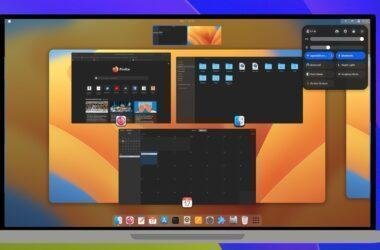
Turbocharge your multitasking with Hot Corners. Assign actions to the four corners of your screen (like “Show all windows” or “Show desktop”). Simply flicking your mouse to a corner triggers the action—no clicking required.
10. Boost Battery Life & Performance
By default, Linux may not manage laptop power perfectly. Replace the default TLP with Auto CPU Freq for better real-time optimization.
- Uninstall TLP:
sudo apt remove tlp - Install Auto CPU Freq from its official GitHub/installer. See this LINK
- Set it to Daemon mode to automatically switch between “Performance” (plugged in) and “Power Saving” (on battery).